
Download HP All-in-One Printer Remote – Free, Secure & Remote Printing Tool for Windows 10
Experience seamless printing from anywhere with HP All-in-One Printer Remote, a powerful and free software designed exclusively for Windows 10 users. This innovative tool transforms your HP All-in-One printer into a smart, remotely accessible device, allowing you to manage print jobs, monitor ink levels, and schedule tasks without being physically present. Whether you're working from home, traveling, or just away from your desk, this software ensures your documents, photos, and important materials are ready when you return. With real-time status updates and secure cloud connectivity, HP All-in-One Printer Remote brings a new level of convenience to modern workflows. The software is easy to download, install, and update, making it a must-have for professionals, remote workers, and home users alike.
Key Features of HP All-in-One Printer Remote
HP All-in-One Printer Remote is packed with features that make remote printing effortless and efficient. One of the standout capabilities is remote print job scheduling. You can send documents to your printer from your smartphone, tablet, or another computer and have them printed at a specific time, even when you're not at your desk. This is especially useful for office managers who want to ensure reports are printed before the team arrives or for students preparing assignments ahead of time.
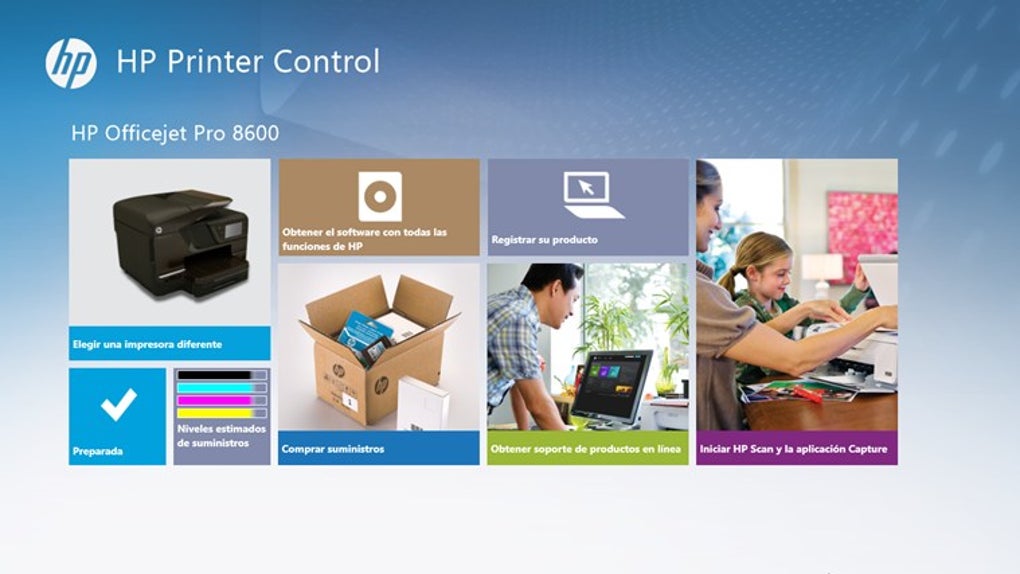
Another essential feature is real-time printer status monitoring. The app provides instant updates on ink and toner levels, paper jams, and other common issues. This proactive alert system helps prevent workflow disruptions by letting you know when supplies are low or maintenance is needed. You can also view recent print jobs, check the queue, and cancel or prioritize tasks remotely—perfect for managing shared office printers.
For users who value security, the software supports encrypted cloud connections, ensuring your print jobs and printer data remain protected. It integrates seamlessly with HP’s cloud ecosystem, allowing you to access your printer from any internet-connected device. Additionally, the app is lightweight and fast, consuming minimal system resources while delivering consistent performance. With regular updates, HP ensures compatibility with the latest Windows 10 versions and new HP All-in-One models, keeping your printing experience smooth and future-ready.
How to Install and Use HP All-in-One Printer Remote on Windows 10
Installing HP All-in-One Printer Remote is a straightforward process that takes less than five minutes. First, ensure your HP All-in-One printer is connected to the same network as your Windows 10 device. Then, visit the official HP Support website and search for “HP All-in-One Printer Remote.” Download the latest version of the software, which is completely free and verified for security.
Once downloaded, run the installer file and follow the on-screen instructions. The setup wizard will guide you through connecting your printer to the software. During installation, you’ll be prompted to sign in with your HP account (or create one if you don’t have it). This account links your printer to your profile, enabling secure remote access.
After installation, open the app and select your printer from the list of connected devices. You can now start sending print jobs remotely. To schedule a print job, simply drag and drop your file into the app, choose the print settings, and set a specific time. The software will automatically send the job to your printer when the time arrives. For added convenience, you can also use the app to check ink levels, view print history, and troubleshoot common issues—all from your Windows 10 PC or even via the HP Smart app on your mobile device.
Compatibility and System Requirements
HP All-in-One Printer Remote is specifically designed for Windows 10 users, ensuring optimal performance and compatibility with the latest operating system features. It supports all current HP All-in-One printer models, including popular series like the HP Envy, HP OfficeJet, and HP Smart Tank lines. However, it’s important to note that this software is not compatible with macOS, Android, or iOS devices—making it a Windows-exclusive solution.
To use the app effectively, your printer must be connected to a stable Wi-Fi network and have HP Smart technology enabled. Additionally, your Windows 10 device should be running the latest version of the OS with automatic updates enabled. The software requires a minimum of 500 MB of free disk space and a stable internet connection for remote functionality.
While the app is free to download and use, it’s recommended to keep it updated to benefit from performance improvements, bug fixes, and new feature additions. HP regularly releases updates to enhance security and ensure compatibility with new printer models. If you're using an older HP All-in-One printer, check the HP support database to confirm if your model is supported before downloading.
Pros and Cons
- Pros:
- Free to download and use
- Secure cloud-based remote printing
- Real-time ink and toner monitoring
- Easy scheduling of print jobs
- Regular updates and strong security
- Cons:
- Only available for Windows 10
- Requires HP All-in-One printer with Smart technology
- No native support for Mac, iOS, or Android
- Dependent on stable Wi-Fi and internet connection
- Basic interface—may lack advanced customization
Frequently Asked Questions (FAQ)
Is HP All-in-One Printer Remote free to download?
Yes, HP All-in-One Printer Remote is completely free to download and use. There are no hidden fees or subscription charges. You can access all core features—including remote printing, job scheduling, and ink monitoring—without paying a single cent.
Can I use this software on Mac or mobile devices?
No, HP All-in-One Printer Remote is currently only available for Windows 10. However, HP offers the HP Smart app for iOS and Android devices, which provides similar remote printing functionality. For Mac users, HP provides alternative tools like HP Easy Start and HP Smart for macOS.
Do I need an HP account to use the software?
Yes, creating an HP account is required to link your printer and enable remote access. The account helps secure your printer data and allows you to manage multiple devices from one dashboard. It’s quick to set up and free to use.
How do I know if my HP printer is compatible?
Check the official HP website or your printer’s model number. The software supports all HP All-in-One printers released from 2018 onward that have HP Smart technology enabled. Older models may not be compatible.
Can I print from my smartphone using this software?
While the software itself runs on Windows 10, you can print from your smartphone using the HP Smart app. The HP All-in-One Printer Remote app is designed for PC use, but it works in tandem with the mobile app for a full remote printing experience.
Conclusion: The Ultimate Remote Printing Solution for Windows 10 Users
If you’re a Windows 10 user with an HP All-in-One printer, HP All-in-One Printer Remote is a game-changer for remote work and home office efficiency. Its ability to schedule print jobs, monitor ink levels, and manage print queues from anywhere makes it an essential tool for modern professionals. The software is secure, reliable, and free—offering unmatched value for its functionality.
While it’s limited to Windows 10 and HP-specific printers, the benefits far outweigh the constraints for its target audience. Whether you're preparing documents before a meeting or printing photos for a family event, this tool ensures everything is ready when you need it.
Download HP All-in-One Printer Remote today and take control of your printing—anytime, anywhere.







